Your Chromebook's touchscreen is a fantastic feature, offering intuitive navigation and a versatile user experience. However, there are times when its presence can become more of a hindrance than a help. Whether you're tired of accidental taps, prefer using a mouse, or facing a hardware glitch, gaining control over your touchscreen is empowering.
This comprehensive guide will walk you through the simplest and most effective ways to disable touch on your Chromebook, giving you back command of your device. We'll cover quick shortcuts and delve into more advanced methods, ensuring you find the solution that fits your needs perfectly.
Why You Might Want to Turn Off Your Chromebook's Touchscreen
Disabling your Chromebook's touchscreen isn't just about personal preference; it can solve practical problems and enhance your workflow. Accidental touches are a common nuisance, especially when typing intensely or resting your hand on the screen's edge. Some users also find that a disabled touchscreen improves focus, preventing unintended interactions during presentations or focused work.
Beyond convenience, there are security considerations and even ways to troubleshoot hardware issues by temporarily deactivating the touch input. If you're curious about all the scenarios where this feature comes in handy, dive deeper into the Common reasons to disable touch.
The Quickest Way: Using Chrome Flags and Keyboard Shortcuts
For most Chromebook users, the most straightforward and recommended method involves enabling a debug shortcut via Chrome Flags. This approach is non-invasive, easy to revert, and doesn't require developer mode, making it ideal for everyday use. It offers a swift toggle, putting you in control with just a few keystrokes.
Ready to take the plunge? Here’s how you can activate this handy shortcut:
Step-by-Step: Enabling Debugging Keyboard Shortcuts
- Open Chrome Browser: Start by launching the Google Chrome browser on your Chromebook.
- Navigate to Chrome Flags: In the address bar, type
chrome://flags/#ash-debug-shortcutsand press Enter. This will take you directly to the relevant flag. - Enable the Flag: Locate the "Debugging keyboard shortcuts" option. From its dropdown menu, select 'Enabled'.
- Restart Your Chromebook: A 'Restart' button will appear at the bottom right of your screen. Click it and wait for your Chromebook to reboot. This step is crucial for the changes to take effect.
Turning Off Your Touchscreen with a Shortcut
Once your Chromebook has restarted, you're all set to use the quick toggle:
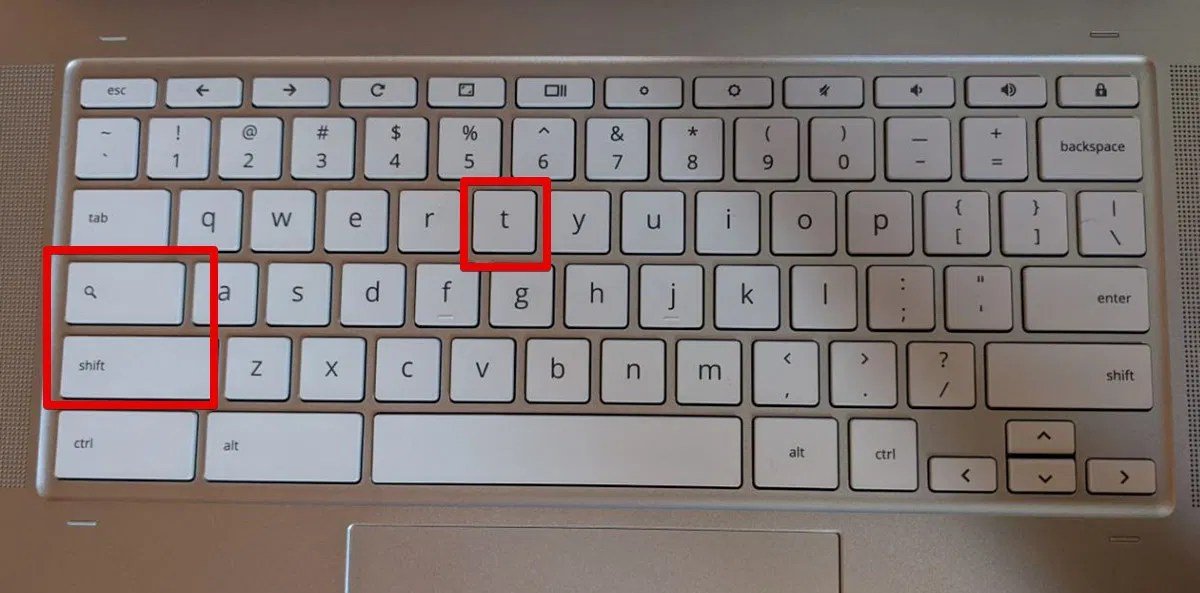
- To Disable Touchscreen: Simultaneously press
Shift + Search + T. You'll notice your touchscreen immediately become unresponsive. - To Re-enable Touchscreen: Simply press
Shift + Search + Tagain. Your touchscreen functionality will be restored.
This method also offers a bonus shortcut: you can disable your touchpad by pressingShift + Search + P, and re-enable it with the same combination. For a more visual and detailed walkthrough of this process, be sure to check out our Disable your Chromebook touchscreen guide.
Advanced Control: Disabling Touch Without Chrome Flags (Developer Mode)
For users who need a more persistent or in-depth control over their input devices, particularly those comfortable with the command line, there's an alternative method. This approach requires your Chromebook to be in Developer Mode and involves using the Crosh terminal. It's important to note that this method might not be universally compatible with all Chromebook models.
Before you proceed, be aware: Enabling Developer Mode on a Chromebook wipes all local data and disables certain security features. Only proceed if you understand the implications.
Using the Terminal (Crosh) to Disable Touch
- Enable Developer Mode: Ensure Chrome OS Developer Mode is enabled on your Chromebook. This is a prerequisite for accessing the command line functionality required.
- Open Terminal: Press
Ctrl + Alt + Tsimultaneously to open the Crosh terminal window. - Access Shell: Type
shelland press Enter. This command grants you access to the more powerful Linux command line. - List Input Devices: Type
xinput listand press Enter. This command displays a comprehensive list of all detected input devices, including your touchscreen. - Identify Touchscreen ID: From the list, locate your touchscreen device. It's usually labeled clearly (e.g., "ELAN Touchscreen"). Note down the numerical
idassociated with it. - Disable Touchscreen: Now, execute the disable command:
xinput set-prop [device-id] "Device Enabled" 0. Replace[device-id]with the actual ID number you noted in the previous step. For example, if your touchscreen's ID is 9, the command would bexinput set-prop 9 "Device Enabled" 0. - Reboot: Reboot your Chromebook to ensure the changes are applied system-wide.
This method offers a more "permanent" disablement compared to the quick toggle, though it requires more technical know-how. Understanding the differences between these methods can help you Manage Chromebook touchscreen options effectively based on your specific needs.
Getting Your Touchscreen Back: Re-enabling the Feature
It's natural to want your touchscreen back after disabling it, whether it's for a new task or just to restore full functionality. Re-enabling your touchscreen is generally straightforward, depending on the method you used to disable it in the first place.
If you used the Chrome Flags and keyboard shortcut method, simply pressing Shift + Search + T again will toggle it back on. If you opted for the Developer Mode terminal commands, often a reboot will restore default settings, or you can re-enable it via the xinput command by changing 0 to 1 (e.g., xinput set-prop [device-id] "Device Enabled" 1). For comprehensive steps on getting your touch functionality back, our guide on Fix your Chromebook touchscreen has all the details.
What if You Can't Disable Your Chromebook Touchscreen? Troubleshooting Common Issues
While the methods above are reliable for most Chromebooks, you might occasionally encounter a hiccup. Perhaps the shortcut doesn't seem to work, or the xinput command doesn't yield the expected results. These situations can be frustrating, but solutions often exist.
Common issues can include outdated Chrome OS versions, specific hardware limitations, or conflicts with other enabled flags. Sometimes, a simple restart or ensuring all updates are installed can resolve these problems. If you're struggling to get your touchscreen to cooperate, our dedicated Troubleshoot your Chromebook touchscreen article offers targeted solutions and advanced diagnostic tips to help you get back on track.
Take Control of Your Chromebook Experience
Disabling your Chromebook's touchscreen is a powerful customization that can significantly enhance your user experience, whether you're preventing accidental taps or optimizing for a different workflow. With simple keyboard shortcuts or more advanced terminal commands, you have the tools to tailor your device to your exact needs. Don't let your technology dictate how you work; make it work for you.